
I recently received an email asking if I was willing to publish sponsored posts on my website. I’ve received a lot of these offers over the years, and usually I just ignore them, or decline without further thought. However this time I decided to give the idea a bit of thought and do some research…
New Look for 2017
One of the effects of updating a lot of other people websites is that I’m constantly reminded of the need to update my own website. Thoughts such as ‘that’s nice – I should use that on my own website’ are common and finally pushed me into having a re-design – just in time for 2017.…
Adding Variable Products in WooCommerce

In WooCommerce Variable products are made using Attributes, if you’re not sure what attributes are, try Assigning Attributes to Products in WooCommerce before this lesson. In this lesson we’ll assume that you’ve already set up some global attributes already using the Products > Attributes menu option. In the left hand admin menu click on Products…
Adding Global Product Attributes in WooCommerce

In this lesson we’ll be adding Global Attributes to WooCommerce. These attributes, once defined, will be available to assign to all our products. It’s also possible to add Attributes when creating individual products – but these will only apply to that particular product. In the left hand admin menu click on Products then Attributes. Alternatively…
Review: WooCommerce Membership by RightPress
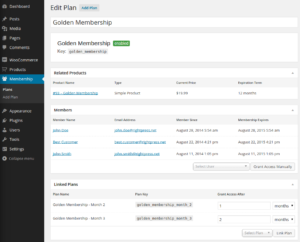
What follows is a real world case study in how I used the WooCommerce membership plugin by RightPress. Background. One of my clients originally approached me with a membership website running on WordPress and the Magic Members plugin. Unfortunately the plugin had been badly configured and users were becoming despondent with the website and membership…
Setting Featured Images in WordPress

Open up your Post/Page in the editing screen Locate the Featured Image meta box (usually on the right hand side of the screen) Click on the link Set Featured Image Click to choose an image from the Media Library or upload a new image on the Upload File tab Click the Set Featured Image button…
The WordPress Posts Admin Screen
In the left hand admin menu clicking on Posts or hovering over Posts then clicking All Posts on the flyout menu then will show you a list of all the Posts your WordPress website contains. At the very top of the page you’ll see a Add New button next to ‘Posts’ – clicking this creates a…
Users and User Roles in WordPress

Clicking on Users in the left hand admin menu or hovering over Users then on the flyout menu clicking on All Users will show you a list of the Users registered on your WordPress website. Above the main list of Users you will see links that enable you to filter the list of Users based…
The WordPress Dashboard
As soon as you’re logged into WordPress you’ll be on an admin page called the Dashboard, think of this as the administration homepage. Running across the top of the page is the Admin Toolbar, this is visible the entire time you’re logged in to WordPress. The Toolbar contains a link to the homepage of your…